
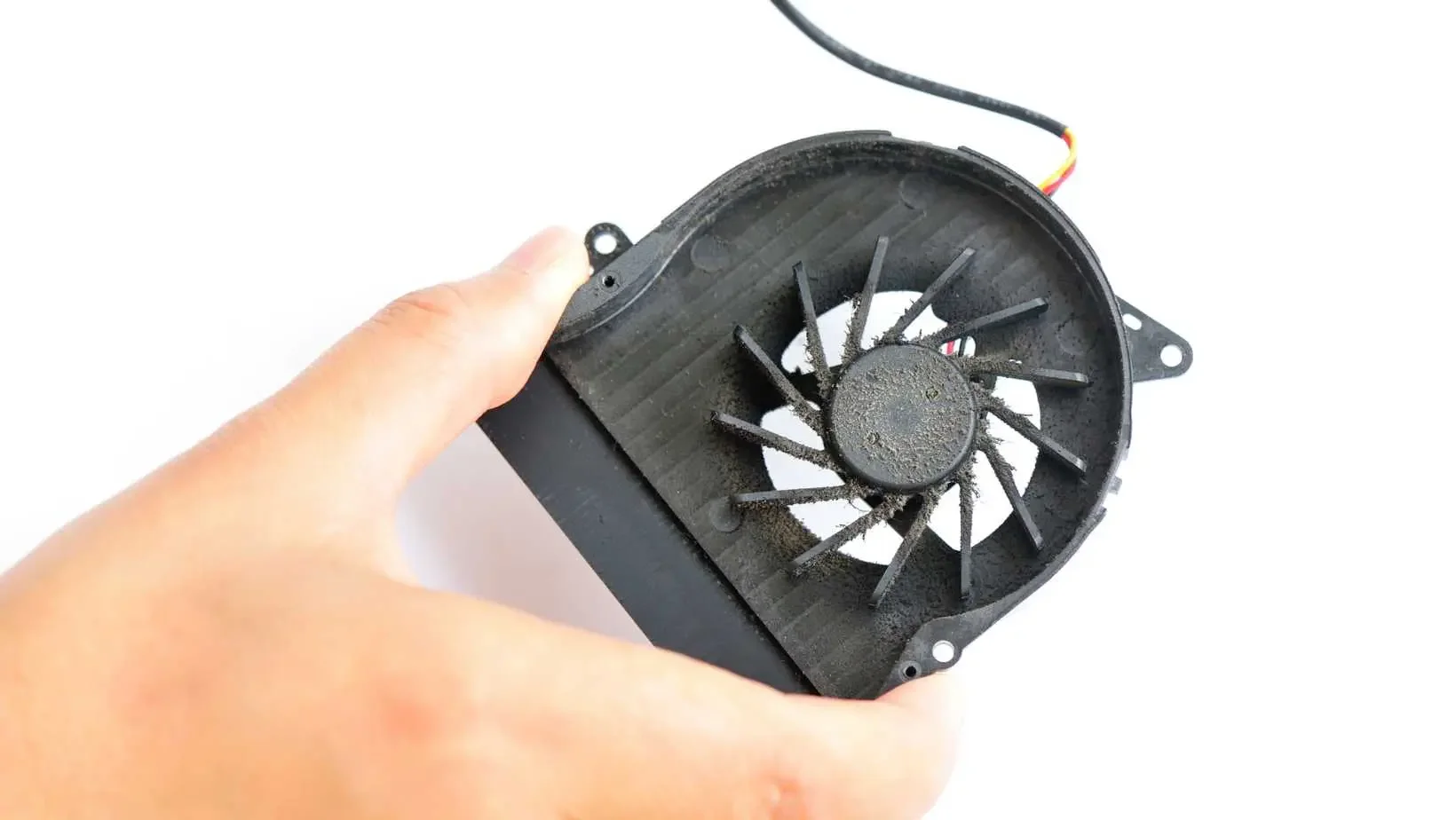
Why is My Laptop Fan So Loud? The Ultimate Guide to Noise, Heat, and Maintenance
Is your laptop sounding like a jet engine lately? You’re not alone. Loud fan noise is one of the most common complaints I see at LaunchLayer, especially from users in Wickford and Basildon who rely on their laptops for work and gaming.
A loud fan isn't just annoying—it’s a distress signal. If your laptop is constantly whirring, it’s fighting to stay cool. Ignoring it doesn't just mean a noisy room; it means you’re shortening the life of your machine.
The 5 Main Culprits of Fan Noise
1. Dust and Blocked Vents
Over time, dust builds up inside your laptop, clogging the vents and coating the fans. This stops heat from escaping. The fan then has to spin at maximum RPM just to keep the internal temperature safe.
The Fix: A professional internal clean. Unlike a quick blast of compressed air from the outside (which often just pushes dust further in), I open the chassis to clean the fans, heatsinks, and vents directly.
2. Dried or Poor Thermal Paste
Thermal paste is the "bridge" that moves heat away from your CPU. After 2–3 years, this paste turns into a dry, crusty insulator. This is a "hidden cost" of skipping maintenance; once that paste fails, your fan will go full throttle even when you’re just checking emails.
The Fix: We replace the factory-grade paste with high-performance thermal compound. This alone can drop your temperatures by 5–10°C.
3. Software Bloat & Background Junk
A laptop that is "overworked" on the inside will always run hot. Antivirus bloat, manufacturer "helpers," and auto-updaters stack up, forcing your CPU to work harder than necessary.
The Fix: A system "spring clean." Disabling unnecessary startup apps allows your processor to idle properly, keeping the fans quiet.
4. Cheap Cooling Design
Some slim, budget laptops (like certain thin HP or Dell models) have tiny fans and minimal vents. Even with a clean system, they struggle to breathe.
The Fix: Using a laptop stand to elevate the machine can help, but sometimes a hardware upgrade or "re-pasting" is the only way to squeeze more life out of a slim design.
5. Hard vs. Soft Surfaces
Using a laptop on a bed, cushion, or your lap blocks the air intake. It’s like trying to breathe through a pillow.
The Fix: Always use a hard, flat surface. Even a simple tray or board is better than a duvet.
The Hidden Cost of Waiting: When to Service?
I’m often asked, "How often should I service my laptop?" As a local tech, my honest answer is every 18 to 24 months. If you wait until the laptop is shutting itself down, you may have already caused permanent "heat fatigue" to the motherboard. Regular maintenance isn't just about silence; it's about protecting your investment. A £60 service today can save you from a £600 replacement laptop next year.
What Happens During a LaunchLayer Service?
When you book a fan noise or heat service with me in Wickford, I don't just "dust it." Every service includes:
Full Internal Stripping: Removing all debris from the motherboard and fans.
Premium Re-pasting: Using high-grade thermal compound for maximum cooling.
Heatsink Audit: Checking for any physical damage or obstructions.
Performance Tweak: Checking for BIOS updates and software that might be causing "phantom" heat.
Case Study: The "Quiet Again" Lenovo
Recently, I worked on a Lenovo laptop that had been driving the owner mad. Inside, it was packed with dust, and the thermal paste had gone crusty. After a full clean and repaste, it ran 10°C cooler and the fan barely spun up under normal use.
Get a Free Diagnostic Today
A noisy fan doesn’t always mean something’s broken, but it is a sign your laptop needs attention. Whether it’s a deep clean, a thermal repaste, or just better usage habits, I can help.
Is your laptop too loud? Book your Free Diagnostic with LaunchLayer here and let's get it running quietly again.

What Parents Really Need to Know About Roblox, Minecraft & Fortnite in 2026
If you have children of school age in Essex, your home is likely filled with the sounds of building blocks, "emotes," and the occasional frustrated shout at a Wi-Fi router. Roblox, Minecraft, and Fortnite are the "Big Three" of modern gaming, but they can be a bit of a black box for parents.
At LaunchLayer, I help parents every week with everything from setting up parental controls to building "First Gaming PCs." Here is my 2026 guide to keeping your kids safe, your wallet secure, and their games running smoothly.
1. Roblox: The Creative (and Social) Wild West
Roblox isn't actually a single game—it’s a platform where millions of people create their own games.
The Safety Risk: Because the content is user-generated, not everything is suitable for all ages.
The 2026 Tip: Use the Account Restrictions setting to lock down the chat feature and limit play to "Curated" games. Also, be wary of "Free Robux" scams—remind your kids that if it sounds too good to be true, it’s a scam designed to steal their account.
Performance: Roblox is surprisingly heavy on the CPU. if it's lagging, it's often a sign of an overheating laptop.
2. Minecraft: Still the King of Creativity
Minecraft is generally the "safest" of the bunch, focusing on building and survival.
The Safety Risk: Public "Multiplayer Servers" can have unmoderated chats.
The 2026 Tip: If your child wants to play with friends, consider setting up a "Minecraft Realm." It’s a private, invite-only server that you control.
Performance: If your child is using "Shaders" or "Mods," the game requires a lot of RAM. Upgrading a laptop from 8GB to 16GB of RAM is often the cheapest way to stop "Minecraft lag."
3. Fortnite: High Intensity & In-Game Spending
Fortnite is a fast-paced battle royale game that is incredibly popular but can be addictive.
The Safety Risk: Voice chat with strangers.
The 2026 Tip: You can disable voice chat entirely in the settings menu. Also, ensure your credit card isn't "remembered" by the console or PC to avoid accidental £99 "V-Bucks" purchases.
Performance: Fortnite is a "competitive" game. Players want a high "Frame Rate" (FPS). If the game looks choppy, it might be time for a Graphics Card upgrade.
How LaunchLayer Helps Local Parents
I offer a range of services specifically designed to make "Gaming Homes" run more smoothly:
The "First Gaming PC" Consultation: I can build a custom, safe, and upgradable PC that grows with your child, often for a better price than a high-street "gaming" laptop.
Parental Control Setup: I can visit your home in Wickford to set up router-level filters and device-level restrictions, giving you peace of mind.
Wi-Fi Optimization: If the "lag" is causing arguments, I can audit your home network to ensure the gaming PC gets a stable connection without slowing down the rest of the house.
Is gaming causing a headache in your house? Contact LaunchLayer today for friendly, local advice on hardware, safety, and setup.

Budget Projectors and Dust: What to Know Before Buying One
You’ve probably seen them on TikTok or Amazon — small, stylish projectors that promise 4K picture and surround sound for under £100. They seem perfect for film nights, gaming, or distracting the kids on a rainy weekend. But after seeing a few come through my workshop in Wickford, I can tell you these budget projectors have one big weakness: dust.
If you're thinking about buying one, or you've already got one that's suddenly sounding like a hoover, here’s what you need to know.
1. Budget projectors aren’t built for the long haul
Most cheap models look decent on the outside but are poorly ventilated inside. The fans pull in air and every bit of dust that comes with it. It doesn’t take long for the internals to clog up, especially if you’re using them on carpets, shelves, or anywhere near a radiator.
I’ve opened up a few of these recently. One was completely blanketed in dust within a few months of light use. No filter, no mesh, just a fan spinning dust straight into the lens and circuitry.
2. The first sign of trouble: fan noise and overheating
You’ll notice the projector getting louder, running hotter, or randomly turning off mid-movie. That’s your cue something inside isn’t happy.
Once it starts overheating, image quality drops and internal components degrade fast. Left long enough, the LEDs or board components can fail entirely. And since most of these projectors aren’t designed to be serviced easily, you’re left either binning it or calling someone like me to carefully open it up and clean it.
3. Cleaning them isn’t always easy, but it helps
The good news is a proper internal clean can bring them back to life, or at least extend their lifespan. I recently cleaned a small LED model for a customer in Wickford. Looked brand new again inside and out, but I warned them it'll likely need doing again in 6 to 12 months.
If you’ve already got one and want to avoid another breakdown, it’s worth booking a quick service. It’s cheaper than replacing it every year.
4. Tips if you’re buying one anyway
Avoid using it near carpets or radiators
Raise it off surfaces with something like a laptop stand
Blow out dust from vents every month with compressed air
Don’t run it for hours straight without breaks
And if you see “easy to clean” in the reviews, be suspicious. Most are sealed with clips or glue.
Final word
I get the appeal (I’ve got one myself!) These little projectors are affordable and surprisingly decent for the price. But just like with laptops, regular cleaning makes a huge difference in how long they last. If yours is already noisy or getting hot, don’t wait for it to die. I’m happy to give it a once-over and get it sorted.

LaunchLayer Featured in Child’s Wish Magazine: Supporting Local Families in Essex
At LaunchLayer, we believe in more than just repairing computers—we believe in community. That’s why we were proud to support the Child’s Wish magazine, a publication dedicated to helping children across the UK experience something truly special.
In their latest issue, we took out an advert to show our support for the incredible work this charity does. Whether it’s helping a child meet their favourite footballer, take a dream trip, or simply escape from hospital life for a while, every story in the magazine reminds us why we’re proud to be a local business in Essex.
Our ad was featured in the printed edition of the magazine, but while the digital version doesn’t list advertisers, we wanted to share our involvement here to mark the occasion and encourage others to explore what Child’s Wish does.
Why We Chose to Support This Cause
We see first-hand how tech connects families—whether it’s a grandparent video calling the grandkids or a child using their laptop for learning and entertainment. So, supporting a charity that brings happiness to children felt like a natural fit for us.
If you’d like to check out the magazine online, you can view it here. You won’t see our name listed, but the stories inside are what matter most.
Want to Support a Local Cause?
We’re always happy to spotlight Essex-based charities or causes that make a real difference. If you run something great, or know someone who does, drop us a message. We might be able to help you spread the word—or fix your dodgy laptop while we’re at it.

Buying a New PC or Laptop in 2026? A Local Tech’s Honest Advice
Buying a new PC doesn’t have to be confusing — here’s what I really recommend (and what I don’t).
Buying a new computer in 2026 is a minefield. Walk into any big high-street retailer and you'll see rows of shiny laptops with "special offers," but most people end up overpaying for tech they don't need or—even worse—buying a "bargain" that will be painfully slow within six months.
At LaunchLayer, I see the "aftermath" of these purchases every day on my repair bench in Wickford. Between skyrocketing component costs and "planned obsolescence," the market has changed. To help you avoid the common traps, I’ve put together this honest guide on how to choose your next machine.
1. The 2026 "RAM Crisis" and the Cheap Laptop Trap
The biggest mistake I see right now is people buying budget laptops (usually under £300). In 2026, this is more dangerous than ever. Because global RAM prices have spiked due to the demand for AI servers, manufacturers are desperate to keep retail prices low. They are doing this by cutting corners in ways you can't see:
Soldered Memory: Many new budget laptops have 4GB or 8GB of RAM soldered directly to the motherboard. You cannot upgrade it later. As Windows 11 and modern apps get heavier, these machines become e-waste almost instantly.
Cutting Power Quality: To offset the cost of expensive memory chips, brands are using bottom-tier power components. I’m seeing an influx of motherboards with "blown" power rails because the internal components simply couldn't handle a minor voltage spike.
The LaunchLayer Alternative: Instead of a "cheap" new laptop with non-upgradable parts, consider a High-End Refurbished Machine. For the same price, you can get a professional-grade Dell Latitude or Lenovo ThinkPad with expandable RAM slots, allowing you to dodge market price hikes by upgrading only when you need to.
2. Why Some Tech Wears Out So Quickly
Manufacturers are making laptops thinner, but as components work harder and hotter, these slim designs act like ovens.
The "Hinge" Disaster: I’ve noticed a trend in 2026 models where plastic fan exhausts are placed right against the screen hinges. The constant heat makes the plastic brittle, leading to snapped hinges within 18 months.
Non-Repairable Designs: Many modern laptops are now glued together rather than screwed. This makes a simple battery replacement or fan clean twice as expensive in labour.
The Upgradeability Insurance: When choosing a laptop, always ask: "Can the RAM and SSD be changed?" If the answer is no, you are at the mercy of the manufacturer’s "expiry date."
3. Gaming Laptops vs. Desktops: The Longevity Gap
I get asked this constantly by parents and gamers in Basildon and Wickford. While gaming laptops are convenient, they have a "thermal problem." Packing a powerful Graphics Card into a tiny space means the components are always under stress.
Choose a Gaming Laptop only if you truly need to play in different locations frequently.
Choose a Custom Desktop if you want longevity. A desktop stays cooler, is easier to maintain, and—most importantly—can be upgraded piece-by-piece for the next decade.
4. Why Go Custom? (The LaunchLayer Specialist Build)
When you buy a pre-built PC from a big store, they often use a "standard" motherboard and a "mystery" power supply to save costs. When I build a Custom PC for a client, we do things differently:
Name-Brand Components: We use parts from ASUS, Corsair, and NVIDIA that carry their own long-term manufacturer warranties.
Optimized Airflow: We design the cooling so your fans stay quiet even under heavy load, extending the life of your GPU and CPU.
Zero Bloatware: You get a clean, fast version of Windows with no manufacturer "junk" software slowing you down from day one.
Final Verdict: The "Golden Rule"
Before you tap your card at a retail chain, ask yourself: "Can this be repaired or upgraded in three years?" If the answer is no, keep walking.
Unsure what to buy? I offer a "Shopping Assistant" service. Tell me your budget and what you need to do, and I'll find you the best value machine—whether that's a custom build from me, a refurbished pro-laptop, or a specific retail model.
Contact LaunchLayer here for expert buying advice or a custom quote.

Windows 10 is Retired: How to Keep Your PC Secure in 2026
Still using Windows 10? Here’s what end of support really means and what to do next.
The deadline has passed. As of October 14, 2025, Microsoft officially stopped providing standard security updates for Windows 10. If you are a home user or a small business in Wickford still running Windows 10, your computer is likely no longer receiving the vital patches needed to defend against modern cyber threats.
At LaunchLayer, I’m helping local residents decide whether to upgrade their hardware or use Microsoft’s new "bridge" to stay safe for one more year.
1. The Reality of Staying on Windows 10
If you use your PC for banking, shopping, or business, running an unsupported OS is a significant risk. Without updates, new vulnerabilities found by hackers stay open forever. However, Microsoft has introduced a temporary safety net: the Extended Security Update (ESU) Program.
2. How to Enroll in Extended Security Updates (ESU)
For the first time ever, Microsoft is offering home users a way to extend the life of Windows 10 until October 13, 2026.
Where to find it:
Go to Settings > Update & Security > Windows Update.
If your PC is up to date, you should see a link that says "Enroll in Extended Security Updates."
The Cost: * Free: If you sign in with a Microsoft Account and enable "Windows Backup" (syncing your settings).
£25–£30 (approx): A one-time payment if you prefer to keep using a Local Account.
Business Users: Small businesses must purchase a different license (starting around £50 per PC for the first year) through a Microsoft partner.
Note: This is a one-year-only fix. After October 2026, the ESU program for home users ends, and you will have to move to Windows 11 or a new device.
3. Your 3 Main Options in 2026
Option A: The "Compatibility Hack" Many PCs marked as "ineligible" can actually run Windows 11 perfectly well. Microsoft’s requirements (like TPM 2.0) can often be bypassed or enabled in your BIOS settings. I offer a Free Compatibility Check at my Wickford workshop to see if your "old" PC just needs a professional touch to get onto Windows 11.
Option B: The Refurbished Route If your hardware is truly too old, don’t buy a bottom-of-the-barrel new laptop. At LaunchLayer, I stock Professional-Grade Refurbished Laptops. These are higher quality than retail "budget" machines, fully Windows 11 ready, and come with a local guarantee.
Option C: The "Secure Enough" Strategy If you choose to stay on Windows 10 without ESU, you must be extremely vigilant.
Browser Choice: Use a browser that still supports Windows 10 (like Chrome or Edge) to get some protection.
Third-Party Antivirus: Ensure you have a robust, paid antivirus, as Windows Defender’s effectiveness may decrease over time on an unsupported OS.
Don’t Wait for a Breach
If you’re seeing the "End of Support" pop-ups and aren't sure which path to take, bring your device into LaunchLayer. Whether it’s enrolling you in the ESU program or migrating your data to a faster, newer machine, I'll make sure your data stays safe.
Is your PC Windows 11 ready? Book your Free Compatibility Check at LaunchLayer today.

Introducing Rail Sign for Rail Shine
How we built Rail Sign—an AppSheet-based inspection app for Rail Shine—to capture job data, automate PDF reports, and file everything cleanly in Drive. No Zapier. No upgrades. Just one smart solution that does the job right.
Introducing Rail Sign (formerly ShineCheck) for Rail Shine
In the world of rail maintenance, keeping a clear record of work is just as important as the work itself. What started out as ShineCheck evolved—after a bit of a naming epiphany—into what we now call Rail Sign: an app we built to streamline how Rail Shine’s operators document completed jobs on each asset. This post is a candid look at how we approached the problem: false starts, frustrations, breakthroughs and all. Think of it like a dev diary from the trenches.
The Problem: Documenting Work Done (Without the Hassle)
Rail Shine’s field operators needed a straightforward way to record each job they finished on a given asset. That sounds simple, but the requirements quickly piled up:
Attach photos of the completed work (often multiple photos per job)
Capture the customer’s signature as proof of completion
Automatically generate a PDF summary of the job’s details (including those photos and signature)
Email that PDF report to the customer, with their boss CC’d
Organise everything in Google Drive: all photos and the PDF needed to live in a folder named after the specific asset and job number
In short, we needed to go from an operator finishing a job to a polished PDF report landing in a customer's inbox, with all files archived in a structured way. And we needed to do it without manual effort.
Early Attempts: Over-Engineering an Automation Rube Goldberg
I started where any reasonable person might: AppSheet for form logic, and Google Sheets as the backend. But to automate the rest, I assumed we’d need a Google Workspace upgrade at £20 per user/month just to send emails outside our domain.
To avoid that cost, I duct-taped a system using Zapier and Make. AppSheet fed form data into Google Sheets. Zapier would pick that up to create and email a PDF, and Make would try to relocate the images into a Shared Drive folder. In theory: elegant. In reality: an automated disaster.
It quickly got out of hand. I had:
Zaps triggering Makes
Makes looping Drive API calls
Credentials and webhooks like spaghetti in a drawer
Photos would go somewhere in Drive, but rarely where I actually wanted them. And email? Half the time it failed silently.
One low point was looping multiple image uploads in Zapier. I built five identical steps in case the operator added five photos. If they only added three? The rest just failed. It worked, badly.
Trial and Error: Dead Ends That Taught Me Something
1. Zapier Loop Hack
Chaining five image steps in Zapier got the job done, but it was brittle and ugly. If the job needed six photos (don’t even ask about seven), I'd have to rebuild the whole chain and maybe even split the automation due to step limits. It was a “win” I regretted immediately.
2. The Glide Detour
Thinking AppSheet might be the wrong horse, I rebuilt the app in Glide over a weekend. The UI looked great and PDF generation was simpler, but Glide’s Drive control and automation logic were too limited. We bailed.
These misfires weren’t wasted. They gave me a clear view of what we needed, and just how far I’d been trying to over-solve a problem that already had a native solution.
The Breakthrough: AppSheet Was Enough All Along
The real "aha" moment came when I realised AppSheet could handle all of it natively. I’d already got it generating the PDF and consistently sending emails. My mistake was assuming it had to land in my personal Drive folder.
Here’s what unlocked it:
PDF Generation: AppSheet was already creating PDFs from templates. The issue wasn’t generation—it was where the file ended up.
Shared Drive Foldering: I discovered I could set the default AppSheet storage path to a Shared Drive and dynamically generate folder names using formulas like
Asset123-Job456. AppSheet would create the folder if it didn’t exist and save everything there: photos and PDFs included.Emailing External Users: Despite my assumptions, AppSheet can email external parties, so long as the app is trusted in Google Admin. No Workspace Enterprise upgrade needed.
Once those clicked, the complexity evaporated:
Operator fills out the Rail Sign form in AppSheet
Submission triggers a bot: generates the PDF, emails it to the customer, and CCs the boss
All files are saved directly into a Google Shared Drive in a dynamically created folder
Done. No external services. No duct tape. Just clean automation.
Outcome: From Frankenstein to One-Stop Solution
Rail Sign now runs daily for Rail Shine’s team. Operators hit submit, customers get a polished report, and the office gets clean records in Drive.
Even better? No Zapier subscription. No Make flow management. No Workspace upgrade. Just one AppSheet app doing its job well.
It’s not glamorous, but it works. It’s maintainable. And it's much easier to debug or extend now that everything happens in one place.
Lessons Learned
Don’t assume your primary platform can’t do something—check first
Every workaround comes with a tax: money, time, or hair loss
Shipping small failures is how great products learn and evolve. What matters is that we learn fast and improve faster
Rail Sign now does exactly what ShineCheck set out to do: just cleaner, leaner, and entirely native. And yes, the founders loved the new name.
Job done.